Bring your personal photos to life with Photo House VR

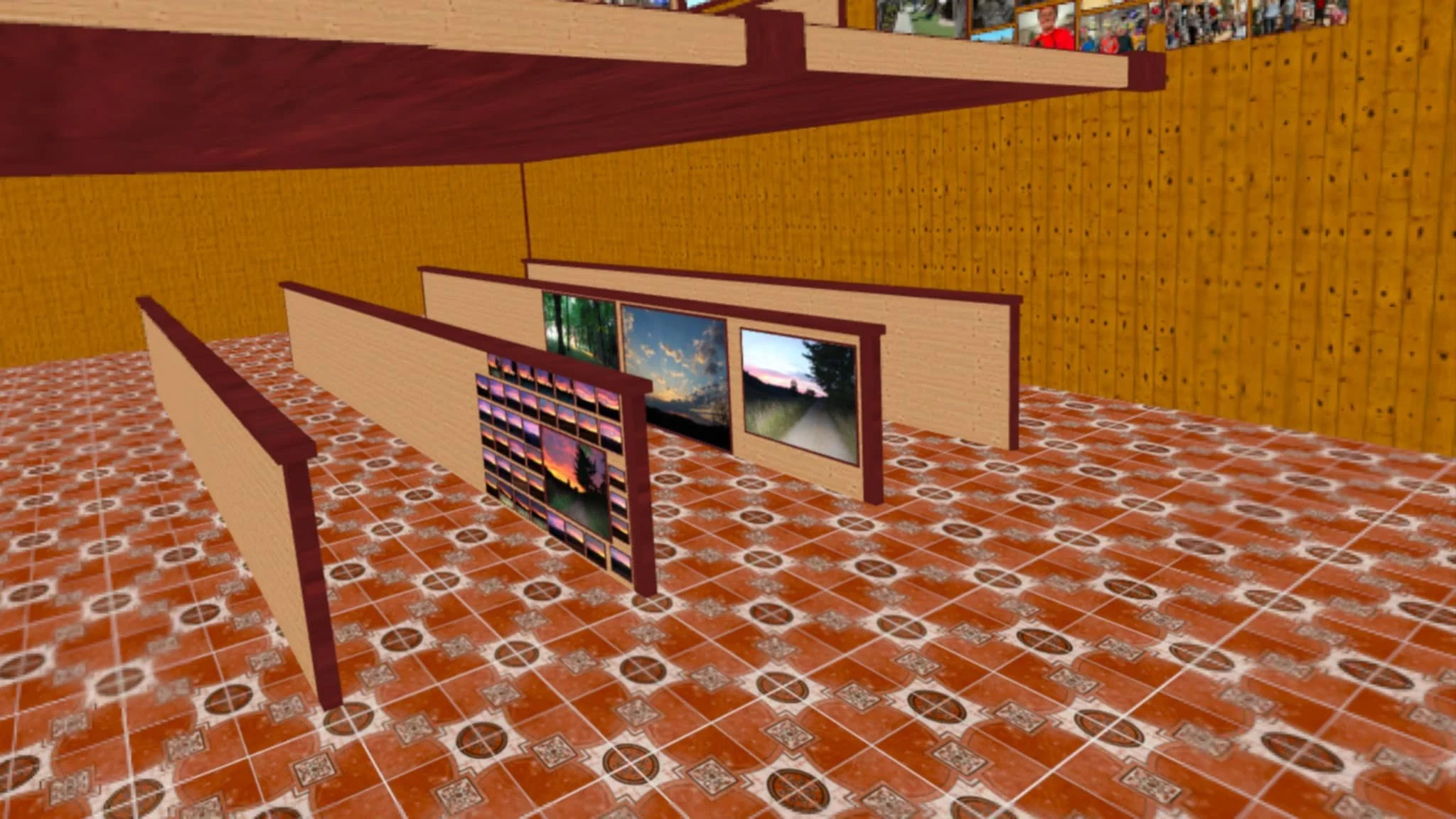
Walk through your memories in VR. Place your personal photos on 20 different wall facings— from your phone, home network or your USB C, And relive them at a scale you've never experienced before.
Get it on the Quest here.
https://www.meta.com/experiences/photo-house-vr/1782481802725012/
Get it for the PC here. or online from the meta store for pc.
https://www.meta.com/experiences/pcvr/photohousevrpc/1792133525093173/

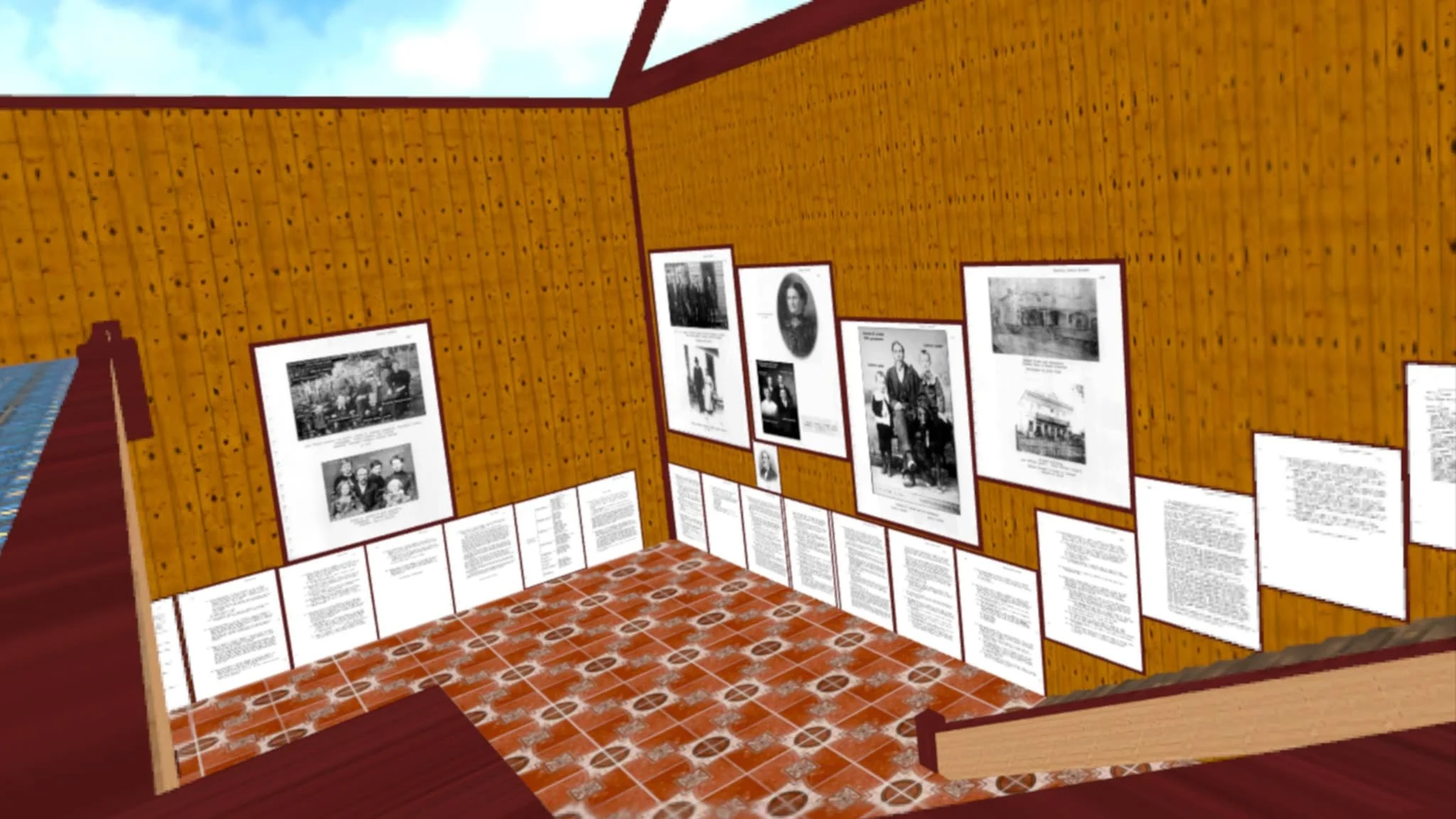
Convert your PDF’s to images, by using a free program online, save to your flash drive and place flash drive in quest, then read a book inside
Photo House VR, Or display your family tree in Photo House VR.
Photo House VR, Supports USB C, flash drive for the Meta Quest, NAS! Network Attached Storage, what that means! if you have a USB port, on your Wi-Fi router, you can plug in an external hard drive, into the USB port, and get your photos through your routers Wi-Fi. This may not work on all routers with a USB port. check before you purchase a hard drive, or when buying router. The Pc version reads all types of storage.

✨ NEW FEATURES • Share Your House — send a link to family or friends anywhere, and they can walk through your photo house in their own headset. The photos load straight from your home NAS, so nothing gets uploaded to anyone else's cloud. • Photo House Codes — save a whole house as a simple 3-digit code, then build a new one. Keep a house for the wedding, one for the kids, one for vacations, and reopen any of them anytime from the "Photo Houses" menu. • 3D Photos — look at any photo and click the left thumbstick to turn it 3D. Your subject stands out from the background with real depth, and it all happens right on your headset. Click again to go back to flat. • Slideshow — look at a photo and press A, and it cycles through every photo in the folder it came from. Press A again to stop. • Name Tags — click the right thumbstick on a photo to type a caption on a little plate under the frame. Perfect for names, dates and places. • Look to Sharpen — hold your gaze on a photo and it sharpens to higher detail, so text and small faces become easy to read. • Save Slots — keep separate galleries and switch between them from the menu (2 on Quest, 3 on PC VR).